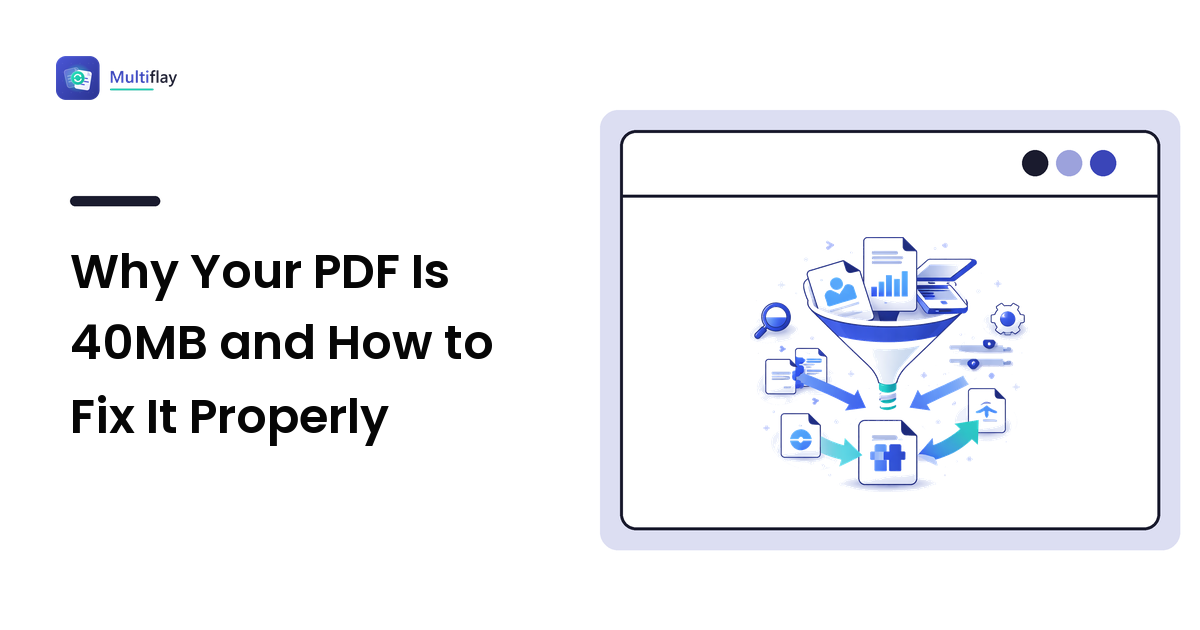
Your document is twelve pages of text and a couple of pictures, and the file is 40MB. Something is clearly wrong, but the PDF gives you no clue what.
Here is the short answer, and it holds for nearly every oversized PDF you will ever meet: the text is not the problem — the images are. The words on twelve pages weigh almost nothing. What weighs something is a scan, a pasted phone photo, a screenshot, or an export preset that quietly stored everything at print resolution. Work out which of those it is, and the fix is usually obvious and often lossless.
This article explains what a PDF is actually storing, how to diagnose your specific file in about thirty seconds, and the correct fix for each cause — including the two cases where compressing is the wrong move entirely.
What a PDF actually stores
PDF stands for Portable Document Format, and it is best understood as a container of drawing instructions plus the resources those instructions need.
For a page of text, the instructions are cheap: "draw these characters, in this font, at these positions." The characters are stored as text, and the font is stored once for the whole document. That is why the complete text of a long book fits comfortably in under a megabyte.
Images are a different animal. When a picture goes into a PDF, the file embeds the image data itself — and crucially, at whatever resolution the image had, not the size it appears on the page. A 4,000-pixel-wide phone photo dragged into a report and scaled down to a thumbnail is still a 4,000-pixel photo inside the file. The layout shrank; the payload did not.
That single mechanism explains the overwhelming majority of enormous PDFs. Once you know it, diagnosing your file becomes a matter of asking where the pixels came from.
Diagnose your file in thirty seconds
Before you compress anything, spend half a minute working out what you are dealing with. Three checks, in order:
1. Divide the size by the page count
A text document exported cleanly from Word, Google Docs, or LaTeX lands in the ballpark of tens to a few hundred kilobytes per page. If your file is running into megabytes per page, there is image data in there — no exceptions worth worrying about.
2. Try to select the text
Open the PDF and drag your cursor across a paragraph. If the text highlights word by word, the pages are real text and the weight is coming from pictures placed on top of them. If nothing highlights — the cursor just draws a rectangle over the page — your pages are photographs of text. That is a scan (or an image-only export), and it is the single most common cause of a 40MB document.
3. Zoom in hard on a letter
Zoom to 400% on a word. Crisp edges at any zoom level mean vector text. Fuzzy, speckled, slightly grey edges mean pixels — again, a scan.
Those three checks put you into one of the buckets below.
The five things that make PDFs huge
Scanned pages stored as full-resolution colour images
A scanner does not see a document. It sees a rectangle of colour, and it captures the whole page as one large image — then repeats that for every page. Two settings multiply the damage:
- Resolution. Scanning at 600 DPI (dots per inch) instead of 300 stores roughly four times the pixels, because you are doubling both width and height. Anything above 300 DPI is print-shop territory that a document destined for a screen or an office printer will never use.
- Colour mode. A full-colour scan stores three channels of information per pixel; greyscale stores one; black-and-white (bitonal) stores far less again. Scanning a plain black-on-white letter in full colour is the most common self-inflicted wound in this whole category.
Photos and screenshots pasted at capture resolution
This is the "12 pages of text and a couple of pictures" case. Two phone photos dropped into a Word document and exported to PDF can outweigh the entire text of the report many times over, because each one arrives at the camera's full frame size and nothing along the way asks whether that is necessary.
Screenshots behave similarly, with a twist: screenshots are usually PNG, which is lossless — it stores every pixel faithfully and never discards detail. That is exactly what you want for a screenshot of an interface, and exactly why the file is large.
An export preset aimed at a printing press
Most applications that produce PDFs offer quality presets with names like "High Quality Print", "Press Quality", "Smallest File Size", or "Standard". These presets mainly decide one thing: the resolution at which embedded images are stored, and whether they are downsampled at all. If someone once set a template to press quality, every document exported from it inherits a printing-press payload it will never use.
Fonts embedded in full instead of subset
PDFs embed fonts so the document looks the same everywhere — that is the whole point of the format. Normally only the characters actually used get embedded, a technique called subsetting, which costs very little. Some generators embed entire font families instead. For a Latin alphabet font that is an annoyance; for a Chinese, Japanese, or Korean font containing thousands of glyphs, it can add serious weight on its own.
Layers of edits saved on top of each other
PDF allows incremental saving: when you annotate, sign, or fill in a form and hit save, the application can append the changes to the end of the file rather than rewriting it. It is fast and it is safe, but a document that has been through several rounds of comments and signatures can be carrying every earlier round with it.
The fix here is delightfully simple and completely lossless: open the file and use Save As (or "Save a Copy") rather than Save. That writes a fresh, compacted file. On a heavily annotated document it can be the entire solution.
The right fix for each cause
| What you found | Fix that actually addresses it | What you give up |
|---|---|---|
| Text won't highlight — it's a scan | Rescan at 200–300 DPI in greyscale or black-and-white, or compress the PDF to downsample the page images | Some sharpness on the scan; nothing on the text you can read |
| Real text, heavy photos | Resize the images in the source document, then re-export — or use the app's "Compress Pictures" option | Pixel dimensions you were never displaying anyway |
| Exported from Word/Docs/InDesign | Re-export with a screen or standard preset instead of a print preset | Print-grade image detail |
| Huge only after signing/commenting | Save As to a new file | Nothing at all |
| Long but genuinely needed | Split it and send only the relevant pages | Nothing — split and merge don't re-encode page content |
The order matters more than most people expect. Always try the lossless moves first: Save As, re-export from the source, split out the pages the recipient actually needs. Each of those costs you nothing. Only then reach for lossy compression, which downsamples and re-encodes the embedded images and cannot be undone.
If you want the underlying theory — what lossless and lossy compression really do, and why a ZIP archive does almost nothing to a PDF full of photos — our file compression guide covers the mechanics across every file type.
Two cases where compressing is the wrong answer
Vector-heavy documents. Maps, floor plans, CAD exports, and complicated charts can be large because they contain an enormous number of drawn paths, not because they contain images. Image compression has nothing to grip. If the file only needs to be viewed rather than measured or edited, exporting a flattened or rasterised version is the honest fix; otherwise, accept the size or send a link.
Anything destined for print or legal archiving. Compression discards image data permanently. A contract you will keep for seven years, a scan a registry will inspect, or artwork going to a printer should stay at full quality. Compress a copy for emailing and keep the original — this is the one habit that prevents every regret in this article.
Frequently asked questions
Why is my scanned PDF so large when it's only a few pages? Because each page is stored as a full photograph of the paper rather than as text. At 300 DPI in colour, a single A4 page is several million pixels, and that repeats for every page. Rescanning in greyscale or black-and-white at 200–300 DPI usually shrinks the file dramatically with no practical loss for a document you intend to read.
Does compressing a PDF make the text blurry? Not if the text is real text. PDF compression works on the embedded images, and vector text is stored separately, so it stays crisp at any zoom. The exception is a scanned document, where the "text" is an image — compress that too hard and the letters do soften. Check a page at 100% zoom before you send it.
Why did my PDF get bigger after I signed it? Signing and annotating often append the changes to the end of the file instead of rewriting it, so earlier states can still be sitting inside the document. Opening the file and using Save As writes a clean, compacted copy without changing anything you can see.
My PDF is under the email limit but still bounced — why? Attachments are re-encoded into text to travel through mail systems, which makes the transmitted copy larger than the file on your disk, and the recipient's server may enforce a lower cap than yours. Aim comfortably under the limit rather than right at it, or share a link instead.
Is it better to compress the PDF or fix the original document? Fix the original whenever you still have it. Resizing the images in the source and re-exporting produces a cleaner, smaller file than compressing a PDF that already baked in oversized images — compressing after the fact means re-encoding data that was already re-encoded once.
An oversized PDF is a diagnosis problem far more than a compression problem. Find out whether you are holding a scan, a document full of camera-resolution photos, or a file carrying its own edit history, and the right fix picks itself — often one that costs you no quality at all. When you do need to shrink, split, or convert a document without installing anything, you can drop a file and get the format you need at Multiflay, a free browser-based file toolkit where uploads auto-delete.