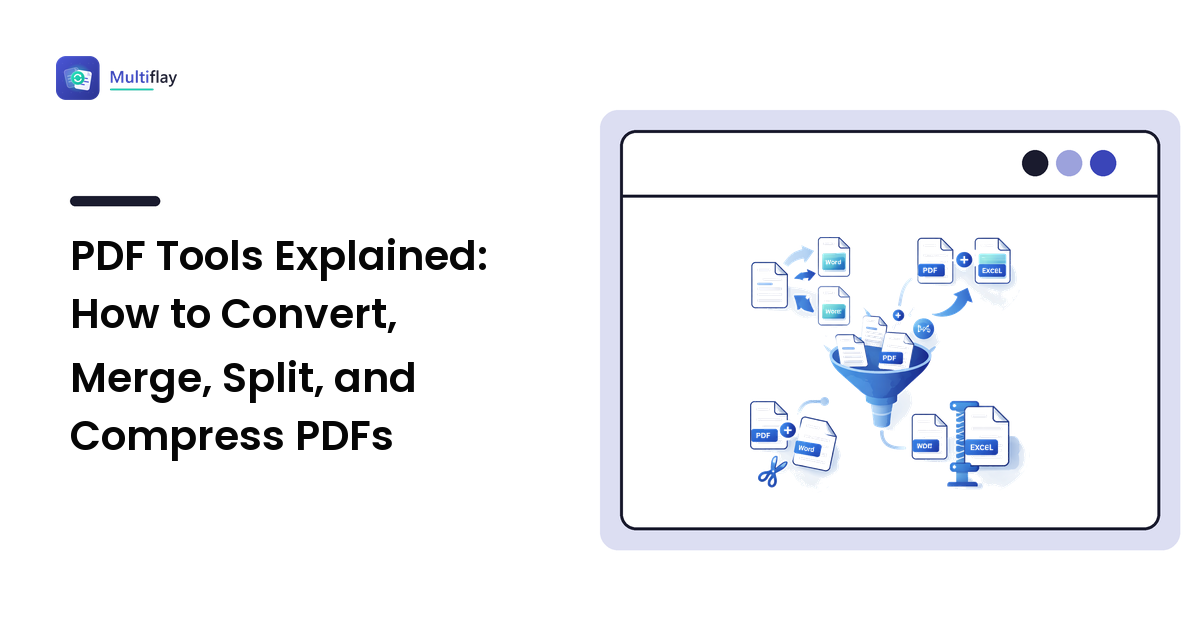
If you have ever received a PDF you needed to edit, a stack of scans that should have been one file, or a document too big to email, you have already met the four jobs this guide covers: converting, merging, splitting, and compressing PDFs. They sound technical, but each one is a five-minute task once you understand what a PDF actually is — and, just as important, what each operation can and cannot promise.
Here is the short version up front: merging and splitting are safe, lossless operations — your pages come out exactly as they went in. Conversion and compression involve trade-offs — converted layouts can shift, and compressed files usually give up some image sharpness. This guide explains why, so you can pick the right operation with realistic expectations.
What a PDF really is (and why it behaves strangely)
PDF stands for Portable Document Format. Its entire purpose is captured in the first word: a PDF is designed to look identical everywhere — same fonts, same layout, same page breaks — on any device, any operating system, any printer. That is why contracts, invoices, CVs, and government forms travel as PDFs.
The way it achieves this is the key to everything else in this guide: a PDF is not a "document" in the sense a Word file is. A Word document stores flowing text plus formatting rules, and your software lays it out fresh every time you open it. A PDF instead stores a fixed snapshot of the page: this word goes at exactly these coordinates, this image fills exactly this box, this line breaks exactly here.
That fixed-layout design explains the two frustrations everyone hits:
- PDFs are hard to edit — because there is no flowing text to edit, only positioned elements. Nudge one word and nothing reflows to make room.
- PDF conversions are imperfect — because turning a fixed snapshot back into flowing text means a converter must guess the original structure: which lines belong to which paragraph, what is a heading, where the columns are.
Keep that mental model — snapshot, not document — and every section below makes sense.
Converting PDFs: what to expect, honestly
Conversion is the most-wanted PDF job and the one with the most fine print.
PDF to Word (DOCX)
This is the classic "I need to edit this" scenario. A converter reads the positioned text in the PDF and reconstructs paragraphs, headings, and tables into an editable DOCX file.
What usually survives well: plain paragraphs of text, simple headings, basic lists, and standard fonts. A straightforward letter or essay typically converts almost perfectly.
What can shift: multi-column layouts, text wrapped around images, complex tables, footnotes, and decorative fonts. The converter must infer structure that the PDF never stored, and complex layouts can reflow — a two-column newsletter may come out as one interleaved column, or a table may arrive as tabbed text.
One more honest caveat: if your PDF is a scan — photographed or scanned pages — there is no digital text inside it at all, only a picture of text. Converting a scan to Word requires OCR (optical character recognition), which reads the image and produces text with occasional recognition errors. Always proofread OCR output; names, numbers, and unusual words are where mistakes hide.
PDF to text, Markdown, or HTML
When you only need the words — quoting a passage, feeding text into another tool, republishing content — converting to plain text, Markdown, or HTML is more reliable than DOCX, precisely because it throws layout away instead of trying to rebuild it. You lose formatting on purpose and keep clean, usable text.
Word (and images) to PDF
The reverse direction is far more dependable. Going into PDF simply takes a snapshot of your document as it currently looks — no guessing required. This is why "export as PDF" is the standard way to send a CV or invoice: the recipient sees exactly what you saw. Turning images into a PDF works the same way: each photo or scan becomes a page, which is the standard trick for submitting multi-page paperwork as one file.
Merging PDFs: many files into one
Merging combines two or more PDFs into a single document — scans into one submission, chapters into one report, an invoice with its receipts.
The reassuring part: merging is lossless. A merge tool doesn't re-render or re-compress your pages; it copies them, byte for byte in effect, into a new file in the order you choose. Text stays sharp, images keep their quality, and clickable links inside pages keep working.
Practical tips that save re-dos:
- Order first. Arrange the files in their final sequence before merging; rearranging afterwards means splitting and re-merging.
- Match page sizes when it matters. Merging an A4 report with a letter-size scan is technically fine, but the mixed page sizes look odd in print. Consider fixing sizes before the merge if the document is going to a printer.
- Check page orientation. A sideways scan stays sideways after merging. Rotate first (rotation is another lossless PDF operation), then merge.
Splitting PDFs: one file into the pieces you need
Splitting is merging in reverse: extract a page range or break a large PDF into parts. Common reasons — you need to send only the signed page of a contract, share one chapter of a manual, or get a huge document under an upload limit.
Like merging, splitting is lossless: the extracted pages are identical to the originals. There are two usual modes:
- Extract a range — "give me pages 12–18 as a new file". Ideal for pulling a section out of a long report.
- Split at intervals or bookmarks — break a 200-page file into chapters or into fixed-size chunks.
One privacy-minded habit worth building: when a recipient only needs one page, send one page. Splitting means you share exactly what is needed and nothing more — the rest of the document stays with you.
Compressing PDFs: smaller files, visible trade-offs
Compression is where PDFs meet the real world of attachment limits — a form portal capped at 10 MB or an inbox that rejects large mail. Most webmail providers cap attachments somewhere around 20–25 MB, and many upload forms far lower.
Here is what actually makes PDFs big: images. The text in a PDF is tiny — a 300-page novel's text fits in under a megabyte. But scans, photos, and high-resolution graphics are heavy, and a PDF made by a scanner is essentially a photo album in disguise.
PDF compression therefore works mostly on the images inside the file:
- Downsampling reduces image resolution to what's actually needed. A scan at 600 DPI (dots per inch) carries four times the data of a 300 DPI scan, and for on-screen reading even 150 DPI is often fine.
- Re-encoding converts images to more efficient compression, typically JPEG at a chosen quality level — a lossy step that discards fine detail.
- Structural cleanup removes duplicate fonts, unused objects, and leftover editing data — lossless housekeeping, though usually the smaller share of the savings.
The honest trade-off: meaningful compression of an image-heavy PDF is usually lossy. Text stays perfectly crisp (it's stored as text, not pixels), but photos and scans lose some sharpness. For a form you are emailing, that is almost always acceptable. For a print-ready brochure, keep an uncompressed original and compress only the copy you send. And a caveat in the other direction: a PDF that is mostly text barely compresses at all — there is simply little weight to remove. If you need bigger savings across other file types too, our guide to making files smaller covers the full toolbox, and the image formats guide explains the quality-versus-size mechanics that PDF compression inherits.
Choosing a tool: what to look for
You do not need to install a desktop suite for any of the four jobs above. Browser-based tools handle everyday PDFs well; here is the checklist that separates good ones from bad:
- A stated file-deletion policy. You are uploading documents that may contain contracts, grades, or IDs. A trustworthy tool tells you exactly when uploads are deleted — automatically, on a stated schedule — rather than staying vague.
- Stated limits. Honest tools list their maximum file size and note fidelity caveats (like DOCX reflow) instead of promising perfection.
- No forced account or dark patterns. The free operation should actually be free and work without tricking you into a signup or a paid step for the download.
- HTTPS throughout. Non-negotiable for anything you upload.
For genuinely heavy work — batch-processing hundreds of files, editing PDF text in place, or documents in the gigabytes — a desktop application is the honest recommendation. For everything else, the browser is faster than installing anything.
This is exactly the niche Multiflay is built for: free, browser-based PDF conversion, merge, split, and compression — with files that auto-delete, limits stated up front, and no account required for everyday jobs.
FAQ
Can I convert a PDF to Word without losing formatting?
Sometimes — it depends on the PDF. Simple, single-column documents with standard fonts usually convert cleanly. Complex layouts (columns, wrapped images, intricate tables) often reflow, because a PDF stores a fixed snapshot rather than document structure, and the converter must reconstruct that structure by inference. Always skim the converted file against the original before relying on it.
Does merging or splitting a PDF reduce its quality?
No. Merging and splitting are lossless operations — pages are copied as-is into the new file without re-rendering or re-compressing. Text, images, and embedded links come through identical to the source. Quality only becomes a question with conversion and compression.
Why is my scanned PDF so large, and how small can it get?
Scans are images, and images are what make PDFs heavy — a scanner effectively saves a high-resolution photo of every page. Compression shrinks scans by lowering resolution and re-encoding the images, which usually produces a dramatic size drop at the cost of some sharpness. How small it gets depends on the scan resolution and content, so compress a copy and check it is still comfortably readable.
Is it safe to upload a PDF to an online tool?
It can be, if you choose carefully. Look for a clearly stated auto-deletion policy with a schedule, HTTPS, stated file-size limits, and no forced account. Avoid tools that are vague about what happens to your upload. For highly sensitive documents, prefer tools that state deletion timelines explicitly — and send split excerpts rather than whole documents when the recipient only needs a page.
Ready for your next PDF job? Multiflay is a free, browser-based file toolkit for exactly these tasks — convert, merge, split, and compress, with uploads that auto-delete and limits stated honestly. Drop a file, get the format you need, at multiflay.com.