You have a PDF, you need to change a few words in it, and there is no obvious way to type. That is the moment most people search for PDF to Word — because a Word file (DOCX) is editable, and a PDF, by design, is not. The good news: converting a PDF to Word is a free, few-minute job. The honest part: the result is a close reconstruction, not a perfect clone, and this guide explains exactly what to expect so you are not surprised.
Below is the quick method to convert PDF to Word, what usually survives the trip, how to handle scanned pages, and answers to the related questions that come up right after — going the other way (DOCX to PDF), password-locked files, oversized email attachments, and more.
How to convert PDF to Word, step by step
The process is the same whether you use Microsoft Word itself or a free browser-based converter:
- Start with the original PDF, not a printout. A born-digital PDF (exported from Word, Google Docs, or a website) contains real text a converter can read. A photographed or scanned page does not — that needs OCR, covered further down.
- Open your converter. In Microsoft Word, use
File > Openand select the PDF; Word offers to convert it. Or use a free online PDF-to-Word tool in your browser — handy when you are on a device without Word installed. - Convert to DOCX. DOCX is the modern Word format. Choose it as the output and start the conversion; a typical document takes seconds.
- Open the result in Word (or Google Docs / LibreOffice, both of which read DOCX) and check it against the original.
- Fix the reflow. Skim for shifted spacing, broken tables, or a heading that lost its style, and tidy those spots. This clean-up pass is normal and usually quick.
That is the whole job. The skill is not in the clicking — it is in knowing what to check afterwards, which is the next section.
What to expect: a reconstruction, not a clone
To understand why PDF-to-Word conversion is approximate, it helps to know what a PDF is. PDF stands for Portable Document Format, and its purpose is to look identical everywhere — same fonts, same layout, same page breaks, on any device. It achieves that by storing a fixed snapshot of the page: this word sits at exactly these coordinates, this image fills exactly this box.
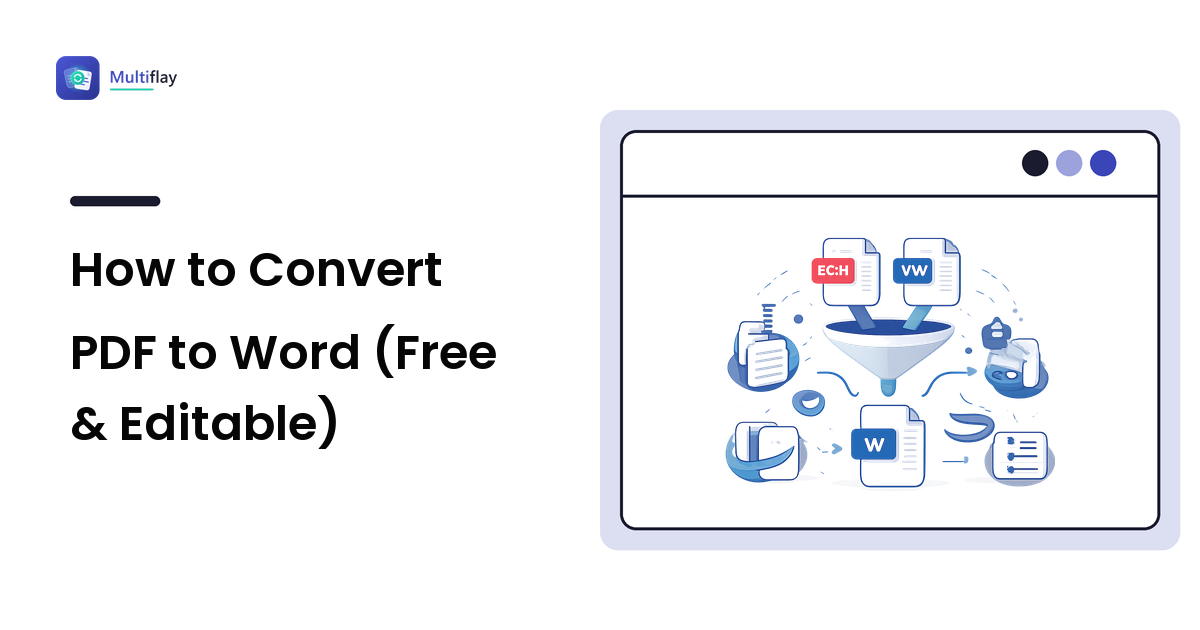
A Word document is the opposite: it stores flowing text plus formatting rules and lays the page out fresh every time you open it. So converting PDF to Word means a program has to look at a fixed snapshot and guess the flowing structure behind it — which lines form a paragraph, what is a heading, where a table's cells begin and end.
Here is the honest breakdown:
- Usually survives well: plain paragraphs, simple headings, basic bulleted lists, and standard fonts. A straightforward letter, essay, or single-column report often converts almost perfectly.
- Can shift: multi-column layouts, text wrapped around images, complex tables, footnotes, and decorative fonts. A two-column newsletter may arrive as one interleaved column; a table may come through as tab-separated text.
None of this makes the conversion useless — it means you should expect a light edit afterward, not a pixel-perfect copy. For anything where layout must be exact, keep the PDF for sending and use the Word copy only for editing the words.
Converting a scanned PDF to Word
If your PDF is a scan or a photo of a page, there is no digital text inside it at all — only a picture of text. A normal converter will hand you a Word file containing that image and nothing editable.
The fix is OCR (optical character recognition): software that reads the picture and reproduces the letters as real text. Many PDF-to-Word tools run OCR automatically when they detect a scan; some ask you to turn it on. Two things to know:
- Always proofread OCR output. Names, numbers, and unusual words are where recognition slips — a "0" read as "O", a stray comma in a figure.
- Scan quality decides accuracy. A crisp, straight, well-lit scan converts far better than a dim phone photo taken at an angle.
DOCX to PDF: going the other way
Sending a document you want to look fixed? Then you want the reverse trip — DOCX to PDF — and it is far more reliable, because going into PDF simply snapshots your document as it currently looks. No guessing required.
In Word or Google Docs, use File > Export or Download > PDF. This is the standard way to send a CV, invoice, or signed form: the recipient sees exactly what you saw, and they cannot accidentally reflow your layout. Whenever fidelity matters more than editability, PDF is the format to send.
What if the file is too large to email?
Converted files — especially anything with images or scans — can bump against attachment limits. Most webmail providers cap attachments at roughly 25 MB, though the exact figure varies by provider, so check yours rather than assume.
Your options, cheapest first:
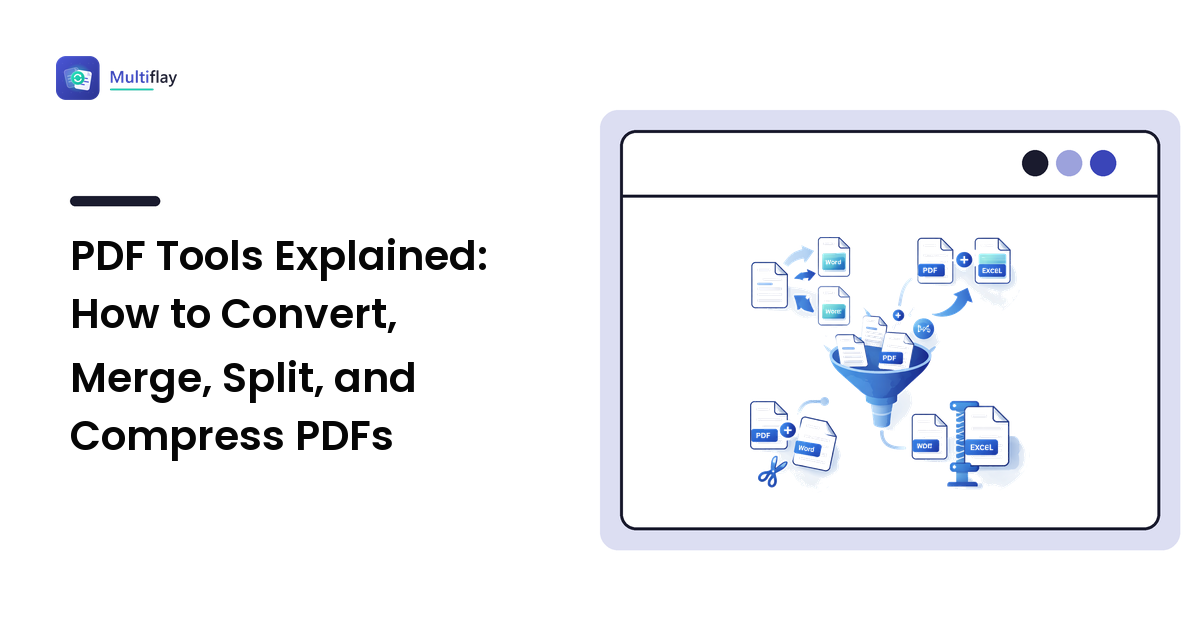
- Compress the PDF before sending — usually the biggest single saving on image-heavy files, and covered in our complete guide to PDF tools.
- Split the document and send the relevant pages only.
- Share a link from cloud storage instead of attaching the file at all — the standard move for genuinely large files.
How do I remove a password from a PDF first?
If your PDF is locked, most converters will refuse it until the protection is cleared. There are two kinds of PDF password, and the difference matters:
- An owner (permissions) password restricts actions like editing or copying but lets you open the file. If you can open and read it, you can typically unlock it and then convert.
- A user (open) password is required just to view the file. You can only remove it if you already know the password — a legitimate tool will ask you to enter it. No reputable tool "cracks" a password you do not have, and you should not want one that claims to.
Once the password is removed from a document you own, convert it to Word exactly as above.
Turning images into a PDF
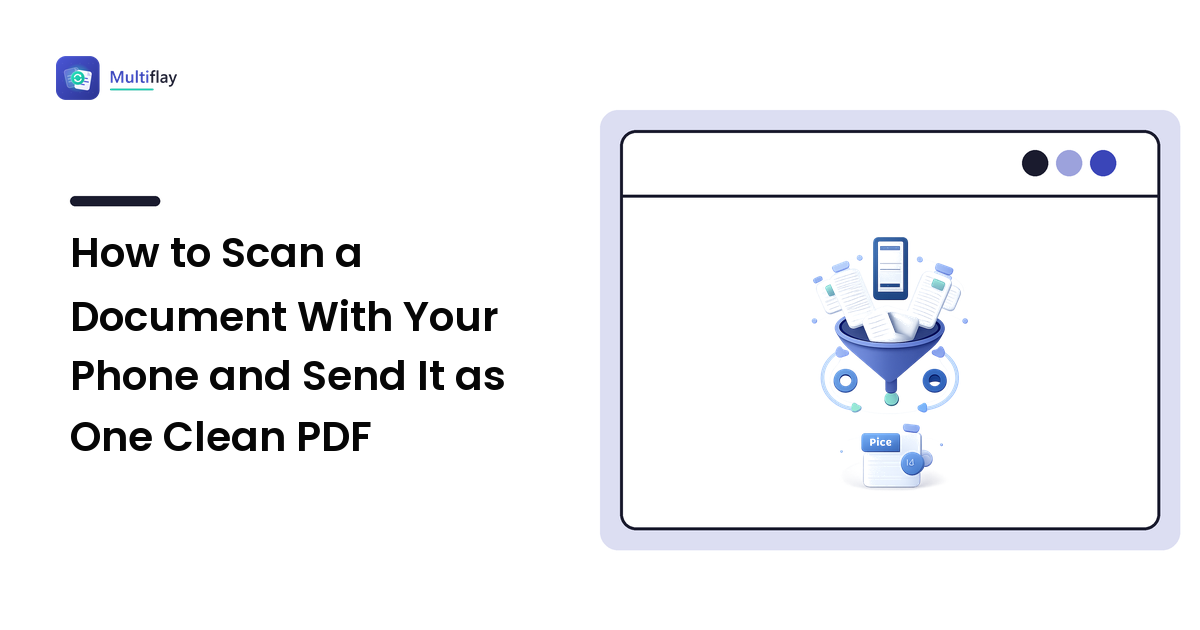
The opposite request — you have photos or scans and need them as one document — is images to PDF. Each image becomes a page, which is the standard trick for submitting multi-page paperwork (receipts, ID copies, handwritten forms) as a single tidy file instead of a pile of loose JPGs. It is a quick, lossless-feeling job, and unlike PDF-to-Word there is no structure to guess: the picture simply becomes a page.
Which is the best PDF reader?
If all you need is to read and lightly mark up PDFs, you may not need a converter at all. The honest answer to "best PDF reader" is that the one already on your device is usually enough:
- On Windows and Mac, the built-in viewer (Edge on Windows, Preview on Mac) opens PDFs instantly and handles basic highlighting and form-filling — no install required.
- Adobe Acrobat Reader is the free, full-featured standard if you want richer annotation, and it is worth it for heavy PDF work.
- Your browser opens almost any PDF you click, which is often all you need to check a document before deciding whether to convert it.
Reach for a PDF-to-Word conversion only when you genuinely need to edit the text — for reading, commenting, and signing, a reader is faster and keeps the layout intact.
Frequently asked questions
Is converting PDF to Word free? Yes. Microsoft Word converts PDFs directly, and there are free browser-based tools for devices without Word. You should not need to pay for an everyday document.
Will the formatting be identical? Not always. Simple documents convert almost perfectly; complex layouts, tables, and columns can shift because the converter is rebuilding structure the PDF never stored. Expect a light clean-up.
Can I convert a scanned PDF? Yes, but you need OCR to turn the scanned image into editable text — and you should proofread the result, especially names and numbers.
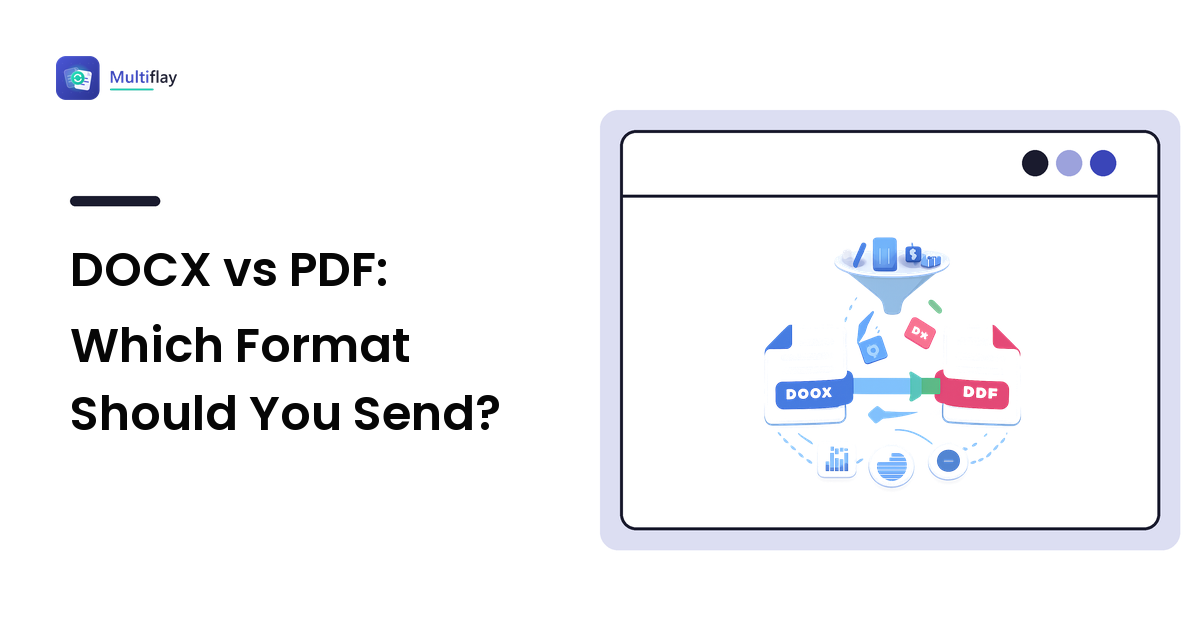
Which is better, DOCX or PDF? Neither — they do different jobs. Use DOCX when you need to edit; use PDF when you need the layout to stay fixed for sending or printing.
What is DOCX? DOCX is the standard Microsoft Word document format, readable by Word, Google Docs, and LibreOffice alike. It stores editable, flowing text — the opposite of a PDF's fixed page.
Converting PDF to Word is one of those small jobs that feels mysterious until you know what is actually happening under the hood: you are asking software to turn a fixed page snapshot back into editable text, and a quick proofread finishes what the converter starts. When you need to flip a file from one format to another without installing anything, you can convert your next file free in the browser at Multiflay — drop a file, get the format you need.