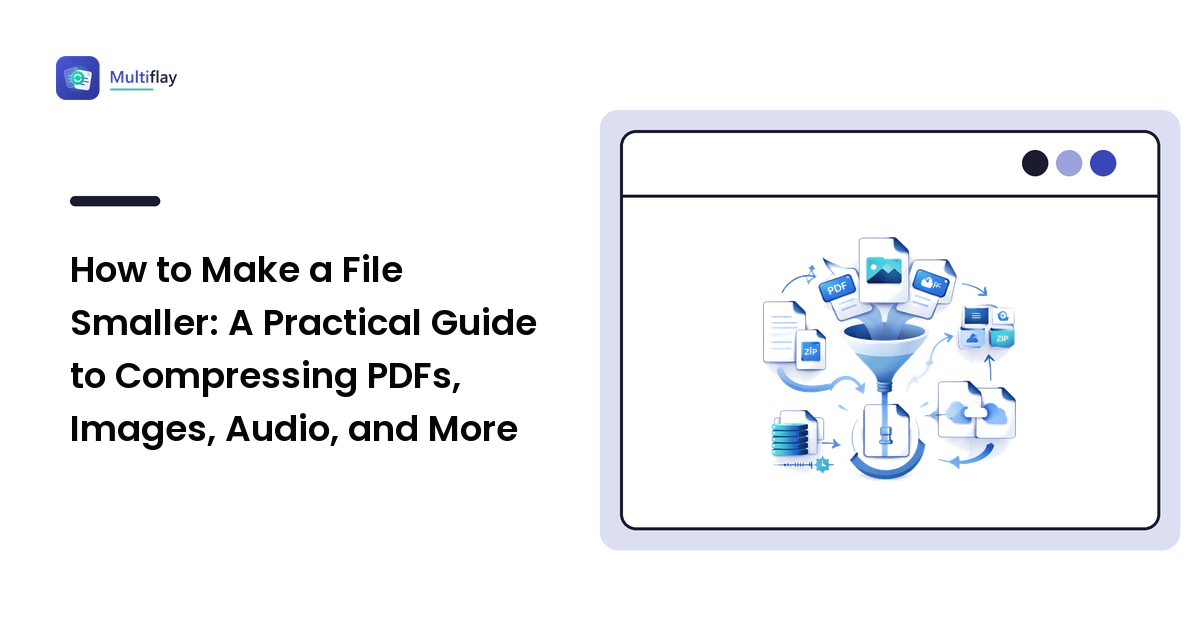
"File too large." Whether it's an email bouncing back, an upload form refusing your PDF, or a chat app rejecting a video of your cat, size limits are where everyday computing gets suddenly, annoyingly technical. Most webmail providers cap attachments somewhere around 20–25 MB; plenty of application portals and form uploads allow far less.
Here is the reassuring truth: almost every oversized file can be shrunk, usually in under a minute, in a browser. But how much it can shrink — and what you give up — depends entirely on what kind of file it is. This guide explains the two kinds of compression, then walks through the fastest honest fix for each file type: PDFs, images, audio, documents, and folders.
Why files are big in the first place
A file's size is just the amount of data it stores, and different content is wildly different in weight:
- Text is nearly weightless. The complete text of a long novel is under a megabyte. Your 40-page report's words are a rounding error.
- Images are heavy. A single photo from a modern phone can be several megabytes — potentially bigger than the text of that novel, many times over.
- Audio and video are heavier still. Sound is thousands of samples per second; video is many images per second. This is why a short clip dwarfs a long document.
The practical consequence: when a file is too big, images or media are almost always the reason. A "huge Word document" is a document with huge photos in it; a "huge PDF" is usually a scan — effectively a photo album in disguise. Knowing where the weight lives tells you where to squeeze.
Lossless vs lossy: the only theory you need
Every compression method on earth falls into one of two camps.
Lossless compression finds redundancy and encodes it more efficiently — like writing "the same word 100 times" instead of writing the word 100 times. Decompress, and you get the original back, bit for bit. ZIP archives work this way, as does PNG for images. The catch: lossless savings are modest for content that is already dense. Photos, MP3s, and videos are already compressed, so zipping them achieves almost nothing.
Lossy compression cheats — brilliantly. It discards detail human senses barely register: imperceptible color variations in a photo, frequencies you can't hear in audio. The savings are dramatic — lossy is how a photo gets to a tenth of its raw size while looking identical at a glance. The cost: the discarded detail is gone permanently, and pushing lossy compression too far produces visible blur and blocky artifacts or audible muddiness.
Two rules follow directly:
- Match the method to the content. Documents, spreadsheets, and folders → lossless (ZIP). Photos, scans, audio → lossy, at a sensible quality level.
- Always keep the original. Compress a copy for sending. Lossy compression is a one-way door, and "compress again, but harder" from an already-compressed file compounds the damage.
Shrinking each kind of file
PDFs
PDFs are the most common "too large to send" offender, and the fix depends on what's inside:
- Scanned or image-heavy PDFs shrink dramatically. Compression lowers the resolution of embedded images (a screen-reading page doesn't need print-grade detail) and re-encodes them more efficiently. Expect a big drop with mild, usually acceptable softening of images — text stays perfectly crisp, because PDF text is stored as text, not pixels.
- Text-only PDFs barely shrink — there's little weight to remove. If a text PDF is somehow still too large, splitting it into parts is the better tool.
- Sending only part of a document? Don't compress — split. Extracting just the pages the recipient needs is lossless and often the biggest "size reduction" of all. Our PDF tools guide covers merge, split, and compression trade-offs in depth.
Images and photos
Images offer two independent levers, and using both beats maxing out either:
- Resize first. A phone photo might be 4000+ pixels wide; a photo viewed on a screen, in a document, or on a web page rarely needs more than about 1600–2000. Halving each dimension cuts the pixel count to a quarter — the single biggest saving available, and invisible at viewing size.
- Then compress moderately. Re-encode as JPG or WebP at a reasonable quality setting. Modern formats matter here: WebP typically lands smaller than JPG at similar quality.
Also check the format itself: a photograph saved as PNG is several times larger than it needs to be, because PNG is lossless — the wrong tool for photos. The full format-by-format logic lives in our image formats guide.
Audio clips
Voice memos and recordings shrink two ways: convert uncompressed formats (WAV) to a compressed one (MP3 or M4A), and trim the parts nobody needs — the fastest lossless saving there is. For spoken voice, a modest MP3 bitrate sounds fine; music deserves higher. Avoid re-encoding an MP3 to another lossy format unless you must — each lossy generation stacks quality loss.
Word documents, PowerPoints, spreadsheets
The weight is the embedded images (see the pattern?). Both Word and PowerPoint have a built-in "Compress Pictures" option that downsamples every image in the document — often a one-click transformation for a slide deck full of photos. Alternatively, export to PDF and compress that, which also freezes your layout for recipients. Spreadsheets are usually small unless they contain images or absurd amounts of data; saving as the modern format (.xlsx, not .xls) helps, as it's compressed internally.
Folders and multiple files
ZIP them. A ZIP archive packs many files into one, compresses losslessly, and travels as a single attachment. Expect strong savings on text, documents, and data — and almost none on photos, videos, and MP3s, which are already compressed. For those, shrink the media files individually first, then zip for tidiness rather than size.
Video
Honest scope note: video compression is real editing-software territory — re-encoding resolutions and bitrates with dedicated tools — and it's beyond what a quick browser utility (including Multiflay) should promise. The everyday workaround: share big videos as a link (cloud drives generate one automatically) instead of an attachment.
The email-limit playbook
When the deadline is now and the attachment bounces, run down this list:
- Split what you're sending. Does the recipient need all 60 pages, or three? Extract and send just those (lossless, instant).
- Compress the heavy pieces. PDF compression for scans; resize + re-encode for photos; "Compress Pictures" inside Office files.
- Zip multiple files into one archive — tidier, and smaller for document-heavy bundles.
- Still too big? Send a link. Cloud storage links have effectively no size limit and most email providers integrate one natively.
And a checklist for choosing an online compression tool, since you're uploading your files to it: a stated auto-deletion policy (when exactly is your upload removed?), stated size limits, HTTPS, and no forced signup to download your own file back. Tools that are vague on deletion don't deserve your documents. These are the exact promises Multiflay is built around: free browser-based compression with limits stated up front and files that auto-delete on a stated schedule.
What compression can't do
A little honesty to close the theory: compression cannot shrink a file indefinitely, cannot recover quality that a previous compression discarded, and cannot make already-compressed media (MP3s, JPGs, MP4s) meaningfully smaller without visible or audible cost. If a tool promises "90% smaller, zero quality loss, every file" — it's marketing, not mathematics. Real tools tell you the trade-off; that's how you know to trust them.
FAQ
How do I compress a file for email for free?
Identify the file type first. PDFs: use a PDF compressor (biggest gains on scans). Photos: resize down, then save as JPG or WebP. Office documents: use the built-in "Compress Pictures" option. Several files: ZIP them. All of these are free, and browser-based tools handle each job without installing software.
What's the difference between zipping a file and compressing it?
Zipping is one specific kind of compression — lossless archiving that bundles files and squeezes out redundancy, with the original perfectly recoverable. "Compressing" a photo, PDF, or audio file usually means lossy re-encoding, which discards subtle detail for much bigger savings. ZIP excels on documents and data; lossy methods excel on media.
Why doesn't zipping my photos or videos make them smaller?
Because they're already compressed. JPG photos, MP3 audio, and MP4 video have had their redundancy squeezed out by lossy encoders; a ZIP archive finds almost nothing left to remove. To genuinely shrink media, re-encode it — resize the photo, lower the bitrate — rather than archiving it.
Does compressing a PDF reduce its quality?
Usually somewhat, and usually acceptably. PDF compression mostly downsamples and re-encodes the images inside the file, so photos and scans lose a little sharpness while text stays perfectly crisp. Compress a copy, check it's comfortably readable, and keep the original for archiving or print.
Fighting a file that won't fit? Multiflay is a free, browser-based file toolkit for shrinking, converting, merging, and splitting everyday files — limits stated honestly, uploads auto-deleted. Drop a file, get the format you need, at multiflay.com.