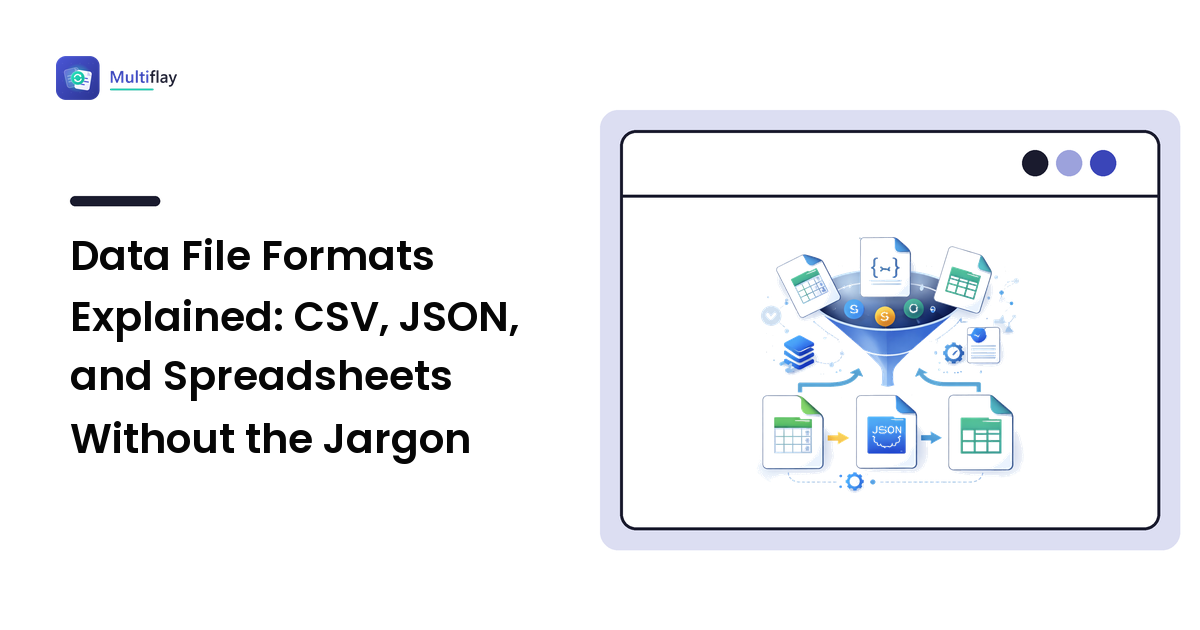
Sooner or later, office life hands you a file full of data instead of words: a CSV export from a shop or a survey, a JSON file an app asked you to upload, or a spreadsheet a colleague swears "just needs a quick tweak." They all hold rows and values, yet each behaves, converts, and breaks differently. This guide explains what CSV, JSON, and spreadsheets are, when to use each, and how to move data between them without it turning to nonsense.
The short version up front: CSV is a plain-text table that almost everything can read, JSON is structured data built for apps and the web, and a spreadsheet is a working document with formatting and formulas on top. Converting between them is usually quick, but each direction quietly drops something — and knowing what it drops is how you avoid the mangled imports that eat an afternoon.
What "data files" actually are (and how they differ from documents)
A document like a PDF or a Word file stores something meant to be read by a person — layout, fonts, page breaks. A data file stores something meant to be processed by software — values arranged so a program can load, sort, and calculate on them. That is why data files look plain in a text editor: styling was never the point. The three formats sit on a spectrum — CSV the simplest and most universal, JSON a little richer, spreadsheets the heaviest — and picking the wrong one means you either lose information you need or carry baggage the receiving tool can't read.
CSV: the universal plain-text table
CSV stands for Comma-Separated Values, and the name is the whole design. A CSV file is plain text where each line is a row and commas divide the columns. A tiny one looks exactly like this:
name,email,city
Ada Lovelace,ada@example.com,London
Alan Turing,alan@example.com,Manchester
That is the entire format. Because it is just text with commas, virtually every tool can open a CSV — spreadsheets, databases, analytics tools, and web apps alike. When a service offers to "export your data," a CSV is usually what you get: the lowest common denominator everything understands.
The trade-off is that CSV is dumb on purpose. It stores values and nothing else: no fonts, no formulas, no cell types, no second sheet. A CSV doesn't even know a column is a date or a price — every value is text until whatever opens it decides how to read it.
Where CSV quietly goes wrong
Most "my CSV is broken" problems come from a handful of predictable causes:
- Values that contain a comma. An address like
Berlin, Germanyhas a comma inside it, which naive tools read as an extra column. The fix built into the format is to wrap such values in double quotes:"Berlin, Germany". Good exporters do this automatically; trouble appears when something in the chain doesn't. - The delimiter isn't a comma. Where the comma is the decimal separator, exports often use a semicolon instead, and some tools use a tab (that variant is called TSV). If every row lands in one column on import, a mismatched delimiter is usually why.
- Encoding mix-ups. Text is stored using a character encoding, and modern files should use UTF-8 so accented letters and non-Latin scripts survive. Open a UTF-8 file as an older encoding and
cafébecomescafé. If symbols look scrambled, encoding is the first suspect. - Spreadsheets "helpfully" reformatting. Open a CSV in a spreadsheet and it may strip the leading zero off a ZIP code, turn a long order number into scientific notation, or read
3-4as a date. The file is fine; the spreadsheet's auto-formatting changed it on display. Importing as text, rather than double-clicking the file, avoids this.
None of these are bugs — they are the price of a format that stores raw text and trusts the reader to interpret it.
JSON: structured data for apps and the web
JSON stands for JavaScript Object Notation, and despite the name you do not need to know JavaScript to use it. JSON is the language apps and websites use to pass data to each other. Where CSV is a flat table, JSON can describe structure — lists inside lists, and values grouped under labels:
[
  { "name": "Ada Lovelace", "email": "[email protected]", "city": "London" },
  { "name": "Alan Turing", "email": "[email protected]", "city": "Manchester" }
]
Each record is a set of "label": value pairs, which makes JSON self-describing: a program never has to guess which column is which. It also handles data that doesn't fit a neat grid — a customer with three phone numbers, or an order with several line items nested inside it. That is why almost every web API and mobile app speaks JSON.
The cost of that richness is that JSON is more verbose than CSV (every value repeats its label) and less friendly to open in a spreadsheet, which wants a flat grid. JSON is also strict about punctuation: a missing comma, a stray trailing comma, or a curly quote pasted from a word processor makes the whole file fail to load.
CSV vs JSON: which to reach for
- Choose CSV for simple tables headed into a spreadsheet, a mail-merge, or a bulk import — anything a human will open in Excel or Google Sheets.
- Choose JSON when data is nested or when a developer, app, or web form asked for it by name; a tool whose upload button says "JSON" will usually reject a CSV outright.
Neither is "better"; they serve different jobs.
Spreadsheets vs CSV: a difference that catches people out
A spreadsheet file — XLSX (modern Excel), the older XLS, or the open ODS format — is not the same thing as a CSV, even though a spreadsheet program opens both. The distinction matters the moment you convert.
A spreadsheet is a full working document. It stores your data plus formatting (bold, colors, column widths), formulas that calculate live, cell types (this is a date, that is currency), charts, and multiple sheets ("tabs") in one file. A CSV holds none of that — only the values, from a single sheet.
So "Save As CSV" deliberately flattens the file: formulas collapse to their last-calculated values, formatting disappears, and every sheet except the active one is left behind. That is often exactly what a plain-data tool needs — but save a multi-tab budget to CSV, reopen it, and the other tabs and every formula are gone. Keep the original spreadsheet; export a CSV copy for the tool that needs it.
Converting between the three: what to expect
Spreadsheet to CSV is the everyday "the import tool won't accept my Excel file" fix — you lose formulas, formatting, and extra sheets, which is usually the point. Watch the leading-zero and date gotchas above on the way back in.
CSV to JSON turns a flat table into structured records, typically one JSON object per row, using your header row as the field labels. It is clean because every CSV row maps neatly to one record — common when feeding a spreadsheet export into an app or web form that expects JSON.
JSON to CSV is the trickier direction, because JSON can be nested and CSV can't. Flat JSON (a simple list of records) converts cleanly. Deeply nested JSON has to be flattened first — the converter must decide how to squeeze a list-inside-a-record into flat columns, and complex structures may not survive. If your JSON has arrays buried inside objects, check the result rather than trusting it blind.
Troubleshooting a broken import: a quick checklist
When a data file won't load, or loads as garbage, run down this list before blaming the file:
- Right format for the tool? A tool asking for JSON will reject a CSV, and vice versa — confirm what the upload expects.
- Delimiter match. Everything crammed into one column usually means the file uses semicolons or tabs where the tool expects commas.
- Encoding. Scrambled accents or symbols point to an encoding mismatch — re-export or convert as UTF-8.
- Header row. Many importers expect the first row to be column names; a missing or duplicated header throws off the mapping.
- Stray characters. Curly quotes, invisible spaces, or a trailing comma break strict JSON — re-export from the source rather than hand-editing.
Choosing a tool: what to look for
For everyday data conversions you don't need a database or a programming environment — a browser-based converter is faster. The checklist for a trustworthy one is the same as for any online file tool: a clearly stated file-deletion policy, HTTPS throughout, stated size limits, and no forced account. Data files often carry names, emails, and order details, so how a tool handles your upload matters as much as whether the conversion is clean.
For genuinely large datasets — millions of rows, or data you query repeatedly — a spreadsheet, a database, or a scripting language is the honest recommendation; browser tools shine on the everyday-sized files most office work produces. The safety checklist for browser-based tools applies to data files too; for documents and pictures rather than data, see the PDF tools guide, the image formats guide, and the guide to making files smaller.
This is the lane Multiflay is built for: free, browser-based conversion between everyday formats — CSV, JSON, and spreadsheet exports — with uploads that auto-delete and limits stated up front.
FAQ
What is the difference between a CSV file and an Excel file?
A CSV is plain text holding only values from a single sheet, readable by almost any tool. An Excel file (XLSX) is a full document that also stores formatting, live formulas, cell types, and multiple sheets. Saving an Excel file as CSV keeps the data but drops the formulas, formatting, and extra sheets — so keep the original and export a CSV copy for tools that need plain data.
How do I convert a CSV to JSON?
A converter reads your CSV's header row as field labels and turns each remaining row into one JSON record. Because every row maps to a single record, the conversion is usually clean. A browser-based data converter does it in a couple of clicks; just check that your CSV has a proper header row and uses a consistent delimiter first.
Why does my CSV open with everything in one column?
That almost always means a delimiter mismatch: the file separates values with semicolons or tabs, but your program expects commas (or vice versa). Re-open using the correct delimiter in the import dialog, or convert the file to a comma-delimited CSV. The file isn't corrupted — just separated differently.
Is it safe to convert data files in an online tool?
It can be, if you choose carefully, because data files often contain personal details like names and emails. Look for a stated auto-deletion policy with a schedule, HTTPS, clear size limits, and no forced signup. Avoid tools that are vague about what happens to your upload; for sensitive datasets, prefer one that states its deletion timeline explicitly.
Need to reshape a data file? Multiflay is a free, browser-based file toolkit for exactly these jobs — convert CSV to and from JSON, and turn spreadsheet exports into clean data — with uploads that auto-delete and limits stated honestly. Drop a file, get the format you need, at multiflay.com.