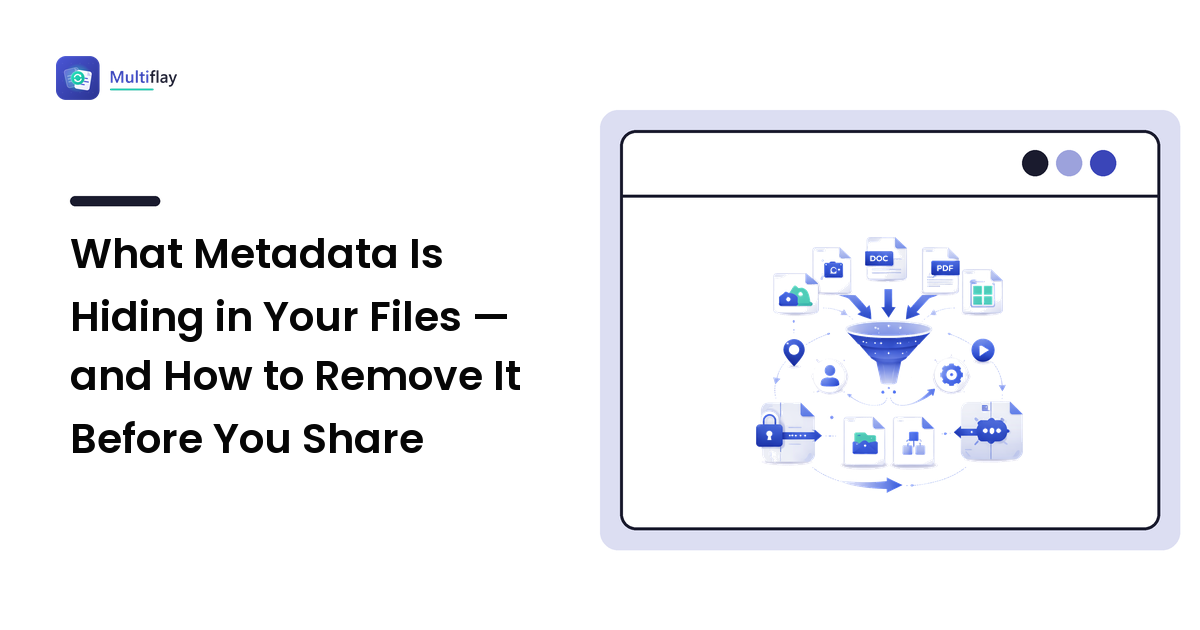
Every file you share carries more than what you can see. A photo isn't just pixels; a document isn't just the words on the page. Tucked inside is metadata — data about the file — and some of it can quietly reveal things you never meant to send: the exact spot where a photo was taken, your real name on a "anonymous" document, the tracked changes you thought you'd deleted, even the make of your phone.
This isn't a reason to panic. Metadata is mostly useful and harmless, and platforms often strip the risky parts for you. But "often" isn't "always," and the gaps are exactly where people get caught out. This guide explains what metadata actually is, what each common file type stores, when it matters, and how to remove it in a few seconds before you hit send.
What metadata is (and why files carry it)
Metadata is descriptive information a program attaches to a file automatically, separate from the visible content. Your camera records its own model and the exposure settings; a word processor stamps the document with an author name and timestamps; an editing app logs which software touched the file. None of this shows up when you look at the photo or read the document — it rides along invisibly.
Most of the time that's a feature. Metadata is how your photo library sorts pictures by date and location, how a search tool finds a document by author, how a printer knows a photo's orientation. The problem is only that the file remembers things you may not want a stranger to know, and it keeps remembering them every time you forward, upload, or attach it.
Photos: EXIF data and the location problem
Digital photos store their metadata in a standard called EXIF (Exchangeable Image File Format). It's the richest and most sensitive metadata most people handle, and it can include:
- GPS coordinates — the precise latitude and longitude where the photo was taken, if location was enabled on the camera or phone.
- Date and time the shot was captured, down to the second.
- Camera or phone make and model, plus lens and exposure settings.
- Sometimes a thumbnail, a software tag, or a name embedded by an editing app.
The location field is the one worth caring about. A holiday snapshot is fine; a photo taken inside your home and posted publicly can broadcast your address to anyone who knows how to read the file. This is why selling something online, posting from home, or sharing a child's photo deserves a second thought about EXIF.
The reassuring part: major social platforms strip EXIF on upload. When you post to most large social networks, the location data is typically removed by their processing. The risk lives in the direct channels — emailing the original file, sharing it in a cloud folder, sending it over a messaging app that preserves the original, or uploading it to a small site that doesn't clean it. There, the EXIF travels intact.
Note that EXIF is mainly a JPG and HEIC concern. Converting or re-saving a photo often drops much of it as a side effect — a useful accident we'll come back to. For the full picture on photo formats and how converting affects them, see our image formats guide.
Documents: authors, comments, and tracked changes
Office files — Word documents, spreadsheets, presentations — carry their own metadata, and in a professional setting it's often the more embarrassing kind:
- Author and last-modified-by names, drawn from whoever's copy of the software created and edited the file.
- Company or organization name registered in the software.
- Creation and edit timestamps, and sometimes total editing time.
- Tracked changes and comments that were hidden but never actually removed.
- Hidden text, off-slide content, or deleted-but-recoverable earlier versions.
The classic mishap is sending a "final" document that still contains tracked changes or margin comments revealing internal debate — or a proposal whose author field names a different client you reused the template from. Because this metadata sits in the file structure rather than the visible page, "select all and delete the comments" doesn't guarantee it's gone.
Both Word and the wider Microsoft Office suite include a built-in cleaner for exactly this: Document Inspector (File → Info → Check for Issues → Inspect Document), which finds and strips hidden properties, comments, and personal data in one pass. On a Mac, look under the Review or Tools menu for the equivalent. Run it before anything leaves the building.
PDFs: metadata survives the "locked" format
People assume a PDF (Portable Document Format) is a flattened, safe snapshot — the layout is locked, so surely the metadata is gone. It isn't. A PDF stores its own document-information dictionary: title, author, subject, keywords, and the software that produced it, plus creation and modification dates. If the PDF was generated from a Word file, the author name usually rides straight across.
PDFs made by scanning or exporting photos can also retain image metadata inside them. And because PDFs are so often the "official" version of a file — the résumé you send, the invoice, the report — the author and software fields are worth a glance before sharing. Most PDF viewers show these under File → Properties (or Document Properties), and dedicated tools can edit or clear them.
Data files and other formats
Plain CSV and JSON files are refreshingly boring here: they're essentially just text, so they don't carry EXIF-style hidden metadata. What they can leak is content you forgot was in the data itself — a hidden column, a comment row, personal details in a field you didn't mean to export. That's a review problem, not a metadata problem, but it deserves the same "look before you send" habit. Spreadsheets, being Office files, are back in the document-metadata camp above.
How to remove metadata before you share
The right method depends on the file, but the options fall into a few reliable buckets.
-
Use the built-in cleaner (documents). Office's Document Inspector is the fastest, most thorough option for Word, Excel, and PowerPoint files — it's designed for exactly this and removes several categories at once.
-
Use the OS quick-strip (photos on Windows). Right-click a photo → Properties → Details tab → "Remove Properties and Personal Information." It creates a cleaned copy with EXIF removed. Handy for a one-off, though it's clunky for batches.
-
Re-save or convert the file. Because metadata is tied to how a file is encoded, converting or re-exporting often drops it — turning a HEIC into a fresh JPG, or exporting a "print to PDF" copy, frequently sheds the original's hidden fields. This is a side effect rather than a guarantee, so don't rely on it for the most sensitive cases without checking the result.
-
Use a dedicated metadata-stripping tool. For photos especially, a tool built to remove EXIF is the cleanest route — it targets the metadata directly and usually handles several files at once, without you hunting through menus. Browser-based tools are convenient here because there's nothing to install. The trade-off, since you're uploading a personal file, is that you should only use one that states how it handles your upload — a topic our guide to choosing a file converter you can trust covers in full.
Whatever the method, one habit matters most: check the result. Open the cleaned file's properties and confirm the fields you cared about — location, author — are actually blank. Stripping is easy to think you've done and not quite have.
A closing reassurance to balance the caution: for most everyday sharing, especially through major platforms that clean uploads, you don't need to think about this at all. Reserve the effort for the cases that actually warrant it — photos shared publicly from private places, documents leaving your organization, and any file where the sender's identity or location genuinely needs to stay private.
FAQ
What is EXIF data on a photo?
EXIF (Exchangeable Image File Format) is the metadata your camera or phone embeds in a photo — the date and time, camera model and settings, and often the GPS coordinates of where the shot was taken. It's invisible when you view the image but travels with the file, which is why the location field in particular is worth removing before sharing a photo publicly or directly.
Does posting to social media remove my photo's metadata?
Usually, yes. Most large social platforms strip EXIF, including location, when you upload. The risk is in direct sharing — emailing the original file, sending it through a messaging app that keeps the original, or uploading to a small site that doesn't clean it. There, the metadata stays intact, so strip it yourself first if it matters.
How do I remove personal information from a Word document?
Use Office's built-in Document Inspector: File → Info → Check for Issues → Inspect Document, then remove the categories it flags — author name, comments, tracked changes, and hidden data. It's more reliable than manually deleting comments, because some metadata lives in the file structure rather than on the visible page.
Do PDFs contain hidden metadata too?
Yes. A PDF stores a title, author, keywords, the software that created it, and creation/edit dates — and if it was exported from Word, the author name usually carries over. The layout being "locked" doesn't clear these. Check File → Properties in your PDF viewer, and clear the fields before sharing anything where the author or origin should stay private.
Does converting a file remove its metadata?
Often, as a side effect — re-encoding a photo into a fresh JPG or exporting a new PDF frequently drops the original's hidden fields. But it's not guaranteed for every field or format, so for genuinely sensitive files, convert and then verify the result's properties are actually clean rather than assuming.
Sharing a file that shouldn't carry your location or name? Multiflay is a free, browser-based file toolkit — convert, compress, and strip metadata from photos and documents, with uploads that auto-delete on a stated schedule. Drop a file, get the clean version you need, at multiflay.com.