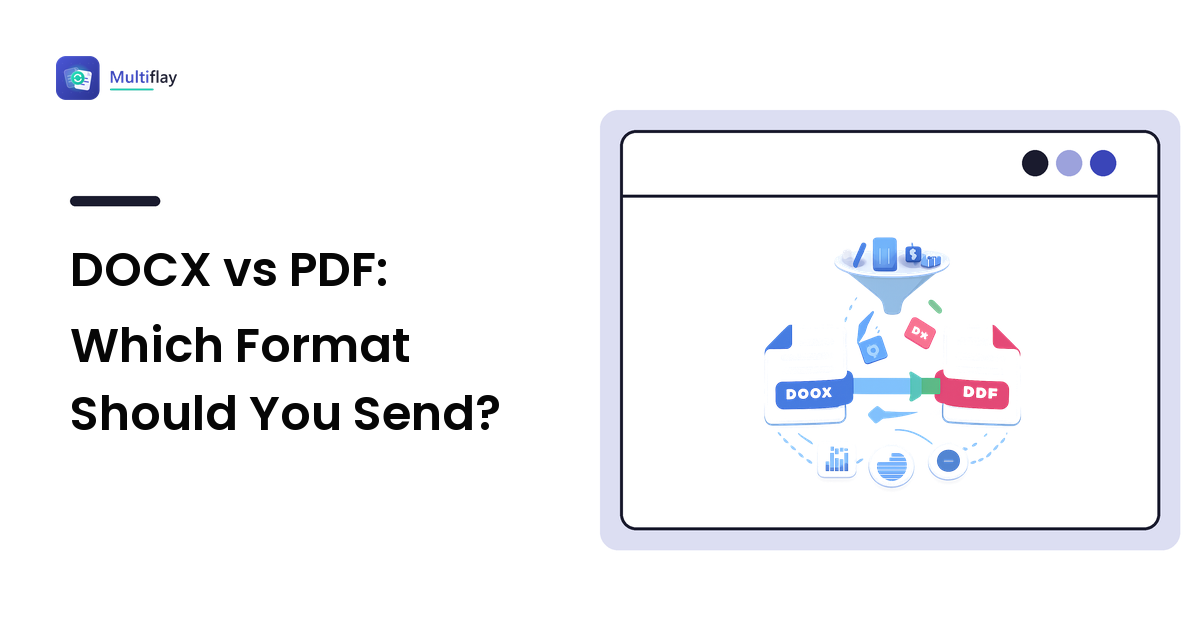
Send a PDF when the document is finished and the layout must stay exactly as you designed it — CVs, invoices, contracts, anything printed. Send a DOCX when someone needs to edit, comment on, or reuse the text. Converting DOCX to PDF is quick and reliable; converting back is the direction that loses fidelity.
That is the verdict. The rest explains the reasoning, because the two formats are less competitors than opposites — and knowing why they differ tells you which to attach without thinking about it again.
What is the actual difference between DOCX and PDF?
DOCX is the modern Microsoft Word document format. Under the hood it is a zipped package of XML files describing your content and the rules for displaying it: this paragraph uses this style, this text is bold, this heading is Level 2. Nothing is pinned to a position on the page — your software lays the document out fresh every time it opens. That is exactly what makes it editable, and why it can look different on someone else's machine.
PDF stands for Portable Document Format, and the first word is the point. A PDF stores a fixed snapshot of each page: this word sits at these coordinates, this image fills this box, this line breaks here. It can carry its own fonts inside the file, so a recipient who has never installed your typeface still sees it. That is why PDFs open identically nearly everywhere — and why they resist editing.
Everything else follows from that distinction; our PDF tools guide unpacks it in more depth.
DOCX vs PDF: the comparison table
| DOCX (Word) | ||
|---|---|---|
| Core design | Flowing text plus formatting rules, laid out fresh on open | Fixed page snapshot with positions locked in |
| Editing | Built for it — anyone with Word, Google Docs or LibreOffice can rewrite it | Possible with dedicated PDF editors, but awkward; text does not reflow |
| Layout consistency | Can shift between devices, app versions, and missing fonts | Consistent nearly everywhere; fonts can be embedded in the file |
| Fonts | Substituted if the recipient lacks them, which can change spacing and page count | Embedded, so the document looks the same on any machine |
| Printing | Print result depends on the recipient's setup | What you see is what prints — the standard for print-ready files |
| Comments & tracked changes | Native and collaborative | Annotations exist, but are review notes, not co-authoring |
| File size | Usually compact for text-heavy documents | Similar for plain text; grows with embedded fonts and high-resolution images |
| Forms & signatures | Basic form fields; signatures are unusual | Fillable forms and e-signature workflows are standard |
| Long-term archiving | Depends on future Word compatibility | Strong, especially the PDF/A variant designed for archiving |
| Universal opening | Needs a word processor or a viewer | Opens in every modern browser with no software installed |
| Best for | Drafts, collaboration, anything the recipient must change | Final documents, applications, invoices, contracts, printing |
When should I convert DOCX to PDF?
Convert whenever the document is done and you care how it looks on arrival. Concretely:
- Job applications. A CV that reflows on the recruiter's machine can push your final role onto a lonely second page. PDF freezes it.
- Invoices, quotes, and contracts. Fixed layout signals finality and prevents accidental edits to figures.
- Anything being printed by someone else — programmes, flyers, forms, handouts.
- Documents with unusual fonts or precise layout. Font embedding is PDF's quiet superpower here.
- Anything opened on a phone or a locked-down work laptop. Every modern browser renders PDFs; not every device has Word.
The good news is that this direction is the reliable one. Going into PDF simply captures your document as it currently looks — the converter is not guessing at anything. Word, Google Docs, LibreOffice, and browser-based converters all do it in seconds, and macOS and Windows can both "print to PDF" from any app that prints.
One habit worth building: open the PDF before you send it. A stray page break is far easier to fix in the source file than to explain later.
When should I send the DOCX instead?
Send the Word file when the recipient's job is to change it: a colleague co-writing with tracked changes, a client filling in their own details, a teacher or editor adding inline comments, or anyone who will reuse the text elsewhere.
Sending a PDF in these situations creates avoidable work. The recipient converts it back to Word, and that reverse trip is where fidelity goes: a converter has to reconstruct flowing structure from a fixed snapshot, guessing which lines form a paragraph and where a table's cells begin. Simple letters survive well; multi-column layouts and complex tables often reflow. Our guide to converting PDF to Word covers what usually holds up and what needs a clean-up pass.
If you genuinely need both, send both files rather than making someone reverse-engineer your layout.
Does converting to PDF make the file bigger or smaller?
It depends on what is inside the document. A text-heavy file usually converts to a PDF of broadly similar size. Two things push it up: embedded fonts, which add typeface data to the file, and high-resolution images, carried at whatever quality the export settings specify.
If the result is too big to send, most export dialogs offer a "minimum size" or "web" setting that downsamples images — fine on screen, not for print. Failing that, a PDF compressor re-encodes the images inside, which is a lossy step: sharpness is genuinely traded for size, so keep your original. The file compression guide covers choosing a setting that saves space without visible damage, and what to do when an email attachment is too large handles mailbox limits specifically.
Is a PDF really more secure than a Word file?
Partly — and it is worth being precise, because this is where people over-trust the format.
What PDF gives you is friction: casual editing is inconvenient, so figures are unlikely to be changed by accident. It also drops the collaborative baggage a DOCX can carry — tracked changes, hidden comments, earlier revisions — which is a real benefit when a document leaves your organisation.
What PDF does not give you is protection. A PDF is editable with the right software, and password protection varies in strength by how it was applied. More importantly, converting to PDF does not strip metadata — author names, the software used, and creation timestamps typically travel with the file. If the document is going somewhere sensitive, check deliberately; what metadata is hiding in your files explains where to look.
One caution that applies to every conversion, in either direction: if the document holds confidential material — client records, medical details, anything under an NDA — be careful which free online converter you hand it to. Look for a clearly stated deletion policy, an HTTPS connection, and no forced account sign-up. If a service will not say what happens to your upload, convert locally: Word, Google Docs, LibreOffice, and your operating system's "print to PDF" all handle DOCX to PDF with no upload at all.
The verdict
PDF for finished, DOCX for unfinished. If the recipient should read, print, sign, or file it, send a PDF. If they should type in it, send the DOCX. When unsure, ask what they will do with the document — the answer picks the format every time.
When you need to flip between the two without installing anything, you can convert your next file free in the browser at Multiflay — drop a file, get the format you need.
FAQ
How do I convert DOCX to PDF for free?
Use File > Save As (or Export) in Word and pick PDF; in Google Docs use File > Download > PDF Document; in LibreOffice use Export as PDF. On Windows and macOS you can also choose "Microsoft Print to PDF" or "Save as PDF" from any print dialog. A free browser-based converter works when you have no word processor installed.
Does converting DOCX to PDF lose quality? Not for text — the words and layout are captured as they appear. Images can lose sharpness if you choose a compressed or "minimum size" export preset, which downsamples them. Choose the higher-quality setting if the document will be printed.
Can a PDF be converted back to a Word document? Yes, but it is a reconstruction rather than a clone. Plain paragraphs, simple headings, and basic lists usually convert cleanly; multi-column layouts, complex tables, and wrapped images often need tidying afterwards. Scanned PDFs need OCR (optical character recognition) first, and OCR output should always be proofread.
Why does my Word document look different on someone else's computer? Because DOCX stores rules, not positions. If the recipient lacks your fonts, their software substitutes similar ones, which changes spacing and can shift page breaks. Different Word versions can also render styles slightly differently. Sending a PDF removes the variable entirely.
What is PDF/A and do I need it? PDF/A is a variant of PDF designed for long-term archiving: it requires everything needed to display the document — fonts especially — to be embedded, and disallows features that might not render years from now. Use it for records you must open far in the future; standard PDF is fine for everyday sending.