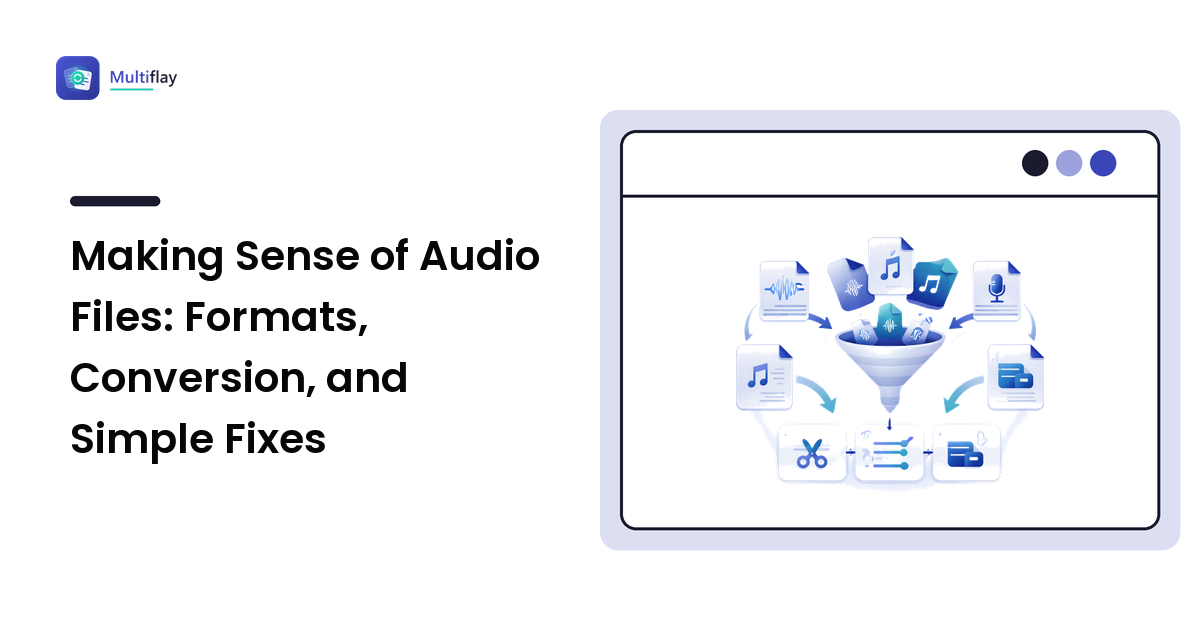
Nobody plans to learn about audio files. You record a voice note, a meeting, a lecture, or an interview — and then the file refuses to open somewhere, or it's too big to send, or there are three minutes of shuffling before anyone speaks, or half the recording is a whisper and the other half is a shout.
The good news: almost every everyday audio job is a version of the same short list — change the format, make it smaller, cut a piece out, or fix the volume — and none of them needs studio software or studio knowledge. This guide maps the whole territory in plain language: what an audio file actually is, how each of those jobs works, what each one costs you in quality, and where the deeper guides are when you need them.
What an audio file actually is
Sound is a vibration, and a recording device measures that vibration thousands of times per second, storing each measurement as a number. An audio file is those numbers, packed up in one of two ways:
- Lossless storage keeps every measurement. Perfect fidelity, big files. WAV is the everyday example.
- Lossy storage throws away the details your ears are least likely to miss, shrinking the file dramatically. MP3 — the near-universal compressed audio format — works this way, as do most files from phones and voice recorders.
Two terms explain most of the confusion you'll ever meet. The codec is the method used to encode the audio — the recipe. The container is the wrapper file that holds the encoded audio, and the file extension names the container, not always the recipe inside. That's why two files ending in the same letters can behave differently, and why "what format is this?" occasionally has a two-part answer.
One rule sits under everything else in this guide, so it's worth stating early: when lossy audio is re-encoded, the losses stack. Converting or re-exporting a lossy file to another lossy format discards a little more each time — the audio version of photocopying a photocopy. Losslessly stored audio never has this problem, which is why the pros record in WAV and convert once at the end.
When a recording won't open: converting between formats
The most common audio job is pure logistics: the file you have isn't the file the destination wants. A voice memo the office PC won't play, a recording an uploader rejects, a clip a car stereo ignores. Conversion fixes it, and the only real decision is the target format.
The short answer serving most cases: convert to MP3 when the file needs to play somewhere you don't control. It's the format with essentially universal support — the reason it survives despite newer formats compressing more efficiently. The full decision, including when WAV, M4A, or OGG is the better target and what each choice trades away, is in our comparison of MP3 vs WAV vs M4A vs OGG.
Two honest caveats before you convert:
- Converting can't add quality. A lossy file turned into WAV becomes a much bigger file holding exactly the same audio. Convert lossy to lossless only when a program demands it.
- Lossy-to-lossy costs a little. MP3 to M4A, or back, re-encodes and stacks losses. Once is usually inaudible for speech; just don't make round trips a habit, and always keep the original.
When the file is too big: shrinking audio honestly
Uncompressed audio is big by arithmetic — a WAV keeps every one of those thousands of measurements per second — so a long meeting recording can dwarf an email limit. Shrinking it means converting to a lossy format, and how well that goes depends mostly on what's in the recording.
Speech is the best case. Voices occupy a narrow, predictable range, so a spoken-word recording can be compressed hard and still stay perfectly clear — this is why a long voice memo can become a modest email attachment without anyone noticing the difference. Music is less forgiving; compress it hard and you'll hear it, typically as a smeared, underwater quality.
The honest method: convert a copy to a lossy format, listen to a short stretch, and only then delete nothing — keep the original until you're sure. How compression works across every file type is covered in how to make a file smaller, and if the deadline problem is specifically a refused email, attachment too large covers every way around a size limit.
When it needs a cut: trimming without wrecking the rest
Trimming — cutting the dead air off the front, keeping only the two minutes that matter — is the simplest edit there is, with one wrinkle worth knowing. Most tools perform a trim by decoding the audio, cutting it, and re-encoding the result. On a lossy file, that's one round of generation loss: rarely audible on speech, but real.
Practical rules that keep it painless:
- Keep the untrimmed original until the project is fully done. Storage is cheap; a re-record is impossible.
- Do all your cuts in one session, then export once. Five separate trim-and-save rounds on an MP3 means five re-encodes; one session means one.
- If the recording is a keeper — an interview, a family recording — trim a copy and archive the original untouched.
When it's too quiet, too loud, or both: fixing volume
Volume problems come in two shapes, and they have different fixes with confusingly similar names.
The whole recording is too quiet (or too loud). The fix is normalization: the tool finds the loudest moment and raises or lowers the entire recording by one uniform amount. Nothing about the sound changes except its level — the safest volume fix there is, and the first one to try.
The levels are uneven — one speaker booms, another whispers. Normalization can't help, because raising the whisper raises the boom with it. The fix here is dynamic-range compression, which quiets the loudest moments so the whole recording can then be brought up together. Confusingly, this "compression" shares a name with making files smaller but has nothing to do with it — one squeezes loudness, the other squeezes data. Applied gently, it's what makes meeting recordings and interviews comfortable to listen to.
One caveat for both: volume fixes can't rescue what was never captured. A recording made too far from the speaker gains hiss and room noise along with loudness when amplified. Expect improvement, not magic.
Picking a tool for all of this
Every job above — convert, shrink, trim, normalize — is available in two flavors: a website that does it in the browser, or a program you install. For short, occasional clips, browser tools win on convenience: nothing to install, works on any machine, done in a minute. For very large files, batch work, or sensitive material you'd rather never upload, installed software earns its setup time. The full trade-off is mapped in browser tools vs installed software, and when the job does point at a converter website, how to choose an online file converter covers what a trustworthy one looks like — a stated deletion policy, a secure connection, and no forced account.
FAQ
What's the best format to save a voice recording in?
For sharing, MP3 — it plays essentially everywhere, and speech survives its compression with ease. If the recording matters long-term or will be edited later, keep the original file from the recorder unchanged as your master and share a converted copy instead.
Why did my recording get worse after I edited it?
Most likely repeated re-encoding. Each save of a lossy file (MP3, M4A) discards a little more data, so several rounds of edit-and-save stack the losses. Next time, make all edits in one session, export once, and keep the untouched original as a fallback.
Can I make a quiet recording louder without ruining it?
Usually, within limits. Normalization raises the whole recording uniformly and is safe to try first; if the levels are uneven, gentle dynamic-range compression evens them out. What you can't remove is the hiss and room noise that gets amplified along with a too-quiet voice.
Do I need to install software to convert or trim an audio clip?
Not for everyday clips — browser-based tools handle converting, trimming, and volume fixes on a typical voice note or meeting excerpt without any installation. Installed software becomes worth it for huge files, batch jobs, or material you'd prefer never to upload at all.
Got a clip in the wrong shape? Multiflay is a free, browser-based file toolkit — drop an audio file and get the format you need, with uploads that auto-delete. Start at multiflay.com.